Programming with CLI: You Need a Cooler Terminal
The choice of tools is determined by the technology stack and development workflow.
The IDE Era is Undergoing Structural Changes
For the past decade, the mainstream development model has been programmers writing code manually, with IDEs being excellent tools for this purpose. One project, one window, one main thread. Write code → Run → Debug → Fix → Run again.
When AI began to truly participate in development, rather than just being an autocomplete tool, the collaboration structure changed: it was no longer just about individuals writing code, but rather “humans + AI collaboratively advancing the system.”
After seeing tips from Claude Code developer Boris Cherny, what he demonstrated was not just a faster editor, but a different collaboration structure:
AI can advance multiple tasks in parallel, while humans only intervene at critical decision points.
Future development will involve parallel collaboration between humans and AI, so tools must adapt to collaborative workflows. CLI is better suited for process and scheduling orchestration. The problem isn’t planning—it’s the collaboration structure. Tools are merely the externalization of that structure.
02. When Development Goes Parallel, the Terminal Needs to Be a More Flexible Entry Point
My current workflow:
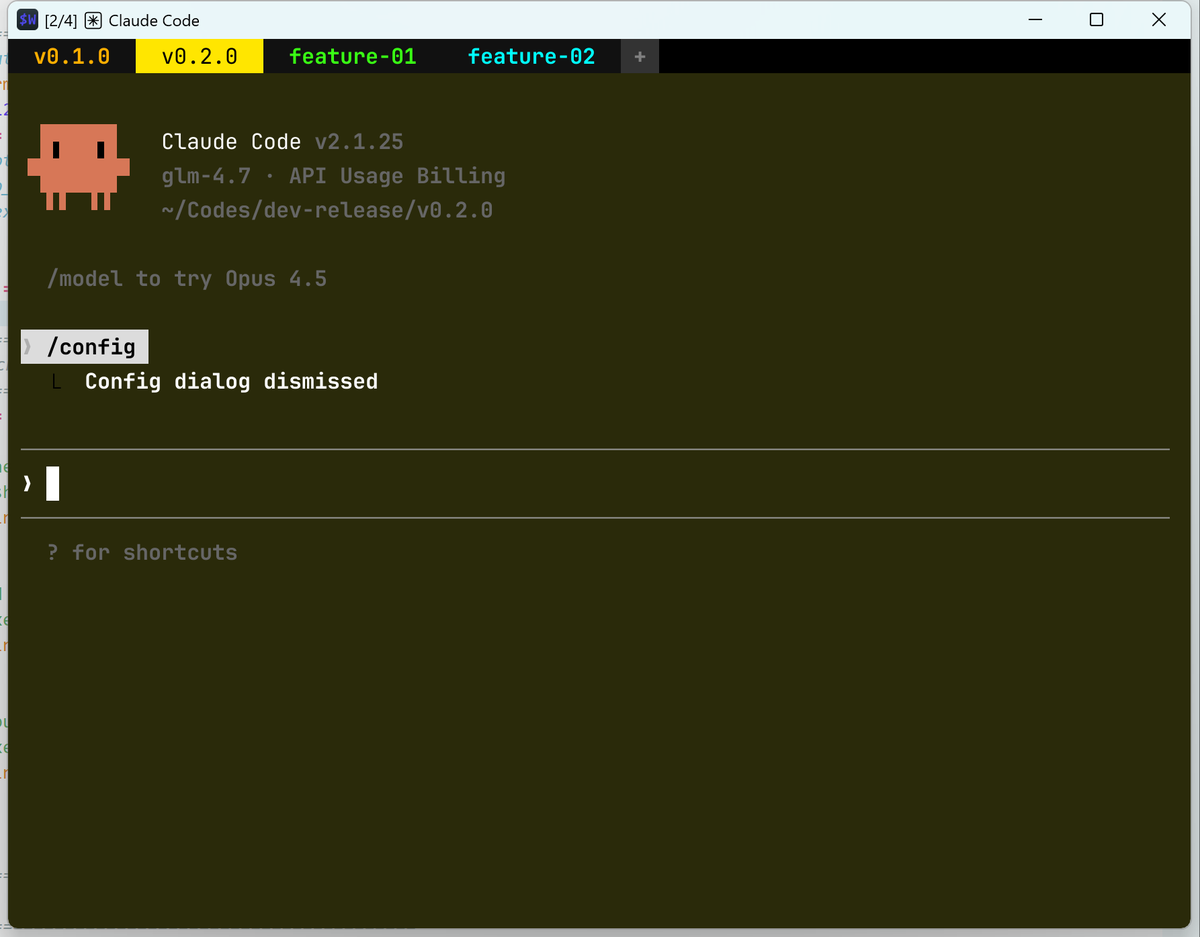
- Running 3-4 worktrees simultaneously for different release versions
- Each worktree runs different agent processes:
- Some writing implementations
- Some adding tests (TDD)
- Some refactoring
- Some reviewing
In this multi-threaded environment, my needs are:
- Quickly create a new thread (new tab)
- Name it (semantic)
- Switch smoothly
- Know which threads need human-in-the-loop
- Visually isolate different threads
IDEs are clearly not well-suited for this workflow. Boris Cherny mentioned his team uses Ghostty, but since my system is Windows and my main development environment is in WSL, I chose WezTerm.
The reasons for choosing WezTerm are simple:
- Native Windows support
- GPU acceleration
- Lua programmable
- Fully customizable keybindings
- System notifications support
- Multiple customizable themes
03. Implementation: Defining the .wezterm.lua Configuration
Setting up this terminal is straightforward: just create a .wezterm.lua file in the C:\Users\<user_name> directory to customize your desired mode (you can directly tell AI your requirements and let it write for you).
My current implementation:
- Open terminal and default to WSL development environment. If there’s only one project being developed recently, you can also go directly to that folder.
config.default_prog = { 'wsl.exe', '--cd', '~' }
- The biggest problem with multiple worktrees isn’t having many—it’s getting confused. My keybinding allows quickly naming each tab:
{ key = 'R', mods = 'CTRL|SHIFT', action = wezterm.action.PromptInputLine {
  description = 'Tab Name:',
  action = wezterm.action_callback(function(window, pane, line)
    if line then window:active_tab():set_title(line) end
  end),
}}
- Common keybinding definitions: You can define your frequently used shortcuts. I mostly use creating new tabs, closing tabs, and renaming tabs. You can also define shortcuts to quickly switch between tabs—I use Ctrl+Tab to switch back and forth and Alt+number to jump to the corresponding tab.
{ key = 'T', mods = 'CTRL|SHIFT', action = wezterm.action.SpawnCommandInNewTab { args = { 'wsl.exe', '--cd', '~' } } },
{ key = 'W', mods = 'CTRL|SHIFT', action = wezterm.action.CloseCurrentTab { confirm = false } },

{ key = 'Tab', mods = 'CTRL', action = wezterm.action.ActivateTabRelative(1) },
{ key = 'Tab', mods = 'CTRL|SHIFT', action = wezterm.action.ActivateTabRelative(-1) },

{ key = '1', mods = 'ALT', action = wezterm.action.ActivateTab(0) },
{ key = '2', mods = 'ALT', action = wezterm.action.ActivateTab(1) },
- Random background color switching: Yes, I like fancy things. But it’s not just for looks—in a multi-threaded environment, color is the simplest way to distinguish. I defined some themes and background colors, and randomly select one each time a new tab opens:
local themes = {
  { bg = '#2a0a10', fg = '#ff0055' },
  { bg = '#2a1a0a', fg = '#ffae00' },
  { bg = '#2a2a0a', fg = '#ffe600' },
  { bg = '#0a2a10', fg = '#39ff14' },
  { bg = '#0a2a2a', fg = '#00ffff' },
  { bg = '#0a1a2a', fg = '#0088ff' },
  { bg = '#1a0a2a', fg = '#bd00ff' },
}
wezterm.on('update-status', function(window, pane)
  local current_tab = window:active_tab()
  local index = (current_tab:tab_id() % #themes) + 1
  local theme = themes[index]
  local overrides = window:get_config_overrides() or {}
  overrides.colors = {
    background = theme.bg,
    foreground = '#ffffff',
    cursor_bg = theme.fg,
    cursor_fg = '#000000',
    cursor_border = theme.fg,
    selection_bg = theme.fg,
    selection_fg = '#000000',
    scrollbar_thumb = theme.fg,
    split = theme.fg,
    tab_bar = { background = '#000000' },
  }
  window:set_config_overrides(overrides)
end)
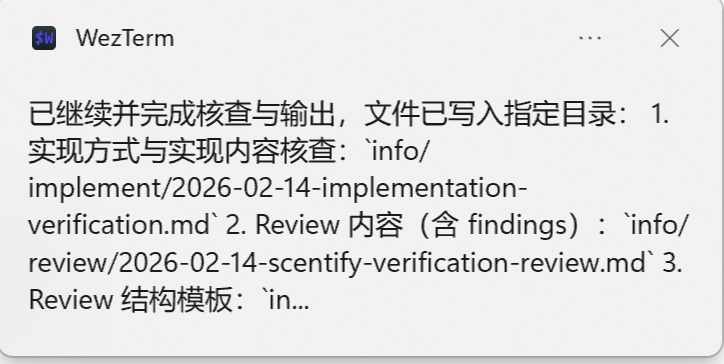
- System notifications: Enable Windows notifications to alert me when my intervention is needed or when tasks are completed.
04. Terminal is Just the First Step
All programmers should now shift their mindset from being a “doer” to a “manager.” Break down business requirements more, plan progress better, and treat each agent working in individual worktrees as an employee to manage. Think more about how to assign work to them, plan progress, how to better engineer processes, and how to abstract your experience and habits for AI to understand.
I’ll gradually share the workflow I’ve built based on my thinking—terminal is just the first step.